
Step-by-Step Guide to Connect Excel to WooCommerce | No Coding Required
Step-by-Step Guide to Connect Excel to WooCommerce | No Coding Required
Are you tired of manually syncing inventory and prices between your Excel files and WooCommerce store?
If you have a WordPress e-commerce store and manage your inventory and prices using Excel files, you know how time-consuming and error-prone manual synchronization can be. Every time a price or stock changes, you have to update it in Excel and then manually apply it to WooCommerce.
The good news is that there is a simple, fast, and no-coding solution for this problem: WooConnect Excel. In this article, we'll guide you step by step on how to connect Excel to WooCommerce and significantly reduce repetitive manual product updates.
Why Connecting Excel to WooCommerce is Essential
Connecting Excel to WooCommerce is a fundamental need for online stores that manage their data with Excel. The benefits of this connection include:
- Save Time: No more manual data entry in two separate systems.
- Reduce Errors: Structured product updates from Excel help reduce manual-entry errors such as incorrect pricing or stock levels.
- Centralized Management: Manage all products, inventory, prices, and orders from one place.
- Manage Store from Windows: No need to constantly log in to the WordPress admin panel.
📌 Key Point: WooConnect Excel is a complete WooCommerce management panel for Windows that helps store managers, accountants, and sales operators run their stores faster and more accurately. This software is a specialized solution for connecting Excel to WooCommerce.
Introducing WooConnect Excel: The Best Solution to Connect Excel to WooCommerce
WooConnect Excel is a standalone Windows 10 and 11 application specifically designed to connect Excel to WooCommerce. WooConnect currently has five operational editions—Holoo, Dasht, and Persian, English, and Arabic Excel editions—while a Sepidar edition is planned for future development. The English version is specifically designed for international users.
🔍 Do you know how WooConnect compares to other solutions for connecting Excel to WooCommerce?
Read our comprehensive comparison of WooConnect with other WooCommerce connection methods to make an informed decision.
🔥 WooConnect Excel (English) — Best Choice for International Users
Use Excel files to update supported WooCommerce product data such as prices and inventory. WooConnect also provides Windows-based tools for viewing and managing orders, products, categories, brands, coupons, and order fulfillment; WooCommerce orders are not automatically written to the Excel file.
🔹 Version: Holoo (Persian)
Connect WooCommerce to Holoo accounting software.
🔹 Version: Dasht (Persian)
Connect WooCommerce to Dasht accounting software.
🔹 Version: Excel (Persian)
Connect WooCommerce to Excel files (Persian interface).
🔹 Version: Excel (Arabic)
Connect WooCommerce to Excel files (Arabic interface).
⚠️ Important Note: The English and Arabic versions of WooConnect are separate products. Please choose the version that matches your language before purchasing.
Key Features of WooConnect to Connect Excel to WooCommerce
WooConnect helps you not only connect Excel to WooCommerce, but also manage your store operations faster and more accurately.
Manage Products, Categories, and Brands
- View the complete list of WooCommerce products
- Edit product information (name, description, status, etc.)
- Edit prices based on data from Excel
- Manage inventory and prevent overselling
- Manage categories and brands
Manage Orders and Customers
- View and manage WooCommerce orders in WooConnect; orders are not automatically written to Excel
- Generate invoices for orders
- Manage order fulfillment process
- Manage coupons and discounts
- Manage customer information
💡 Key Advantage: All these management tasks are done without constantly logging into the WordPress admin panel—directly from a Windows application. This means connecting Excel to WooCommerce is not only simple, but also smart.
Benefits of Purchasing WooConnect to Connect Excel to WooCommerce
Purchasing WooConnect to connect Excel to WooCommerce comes with the following benefits:
- ✅ Technical Support — Support is available while your license remains active.
- ✅ Refund Requests Within 7 Days — Digital-product refunds are conditional. After download, activation, or use, a change of mind alone is not sufficient; verified material defects or material description mismatches that support cannot resolve may be reviewed for refund eligibility.
- ✅ New Software Updates — New updates are available only while your license is active.
- ✅ Easy & Fast Installation — Install in under 5 minutes with no technical skills required.
- ✅ Better value than competitors — Learn more in our comparison guide.
Step-by-Step Guide to Connect Excel to WooCommerce with WooConnect
Installing WooConnect to connect Excel to WooCommerce is very simple and takes less than 5 minutes. Follow these steps:
Step 1: Purchase and Download
First, purchase the Excel version from the link above. After purchase, you'll receive the installation file and your license key.
Step 2: Install on Windows
Run the installer and install WooConnect on Windows 10 or 11. For more detailed instructions, see our WooConnect installation guide on Windows.
Step 3: Activate License
Open the application and enter your license key to activate it.
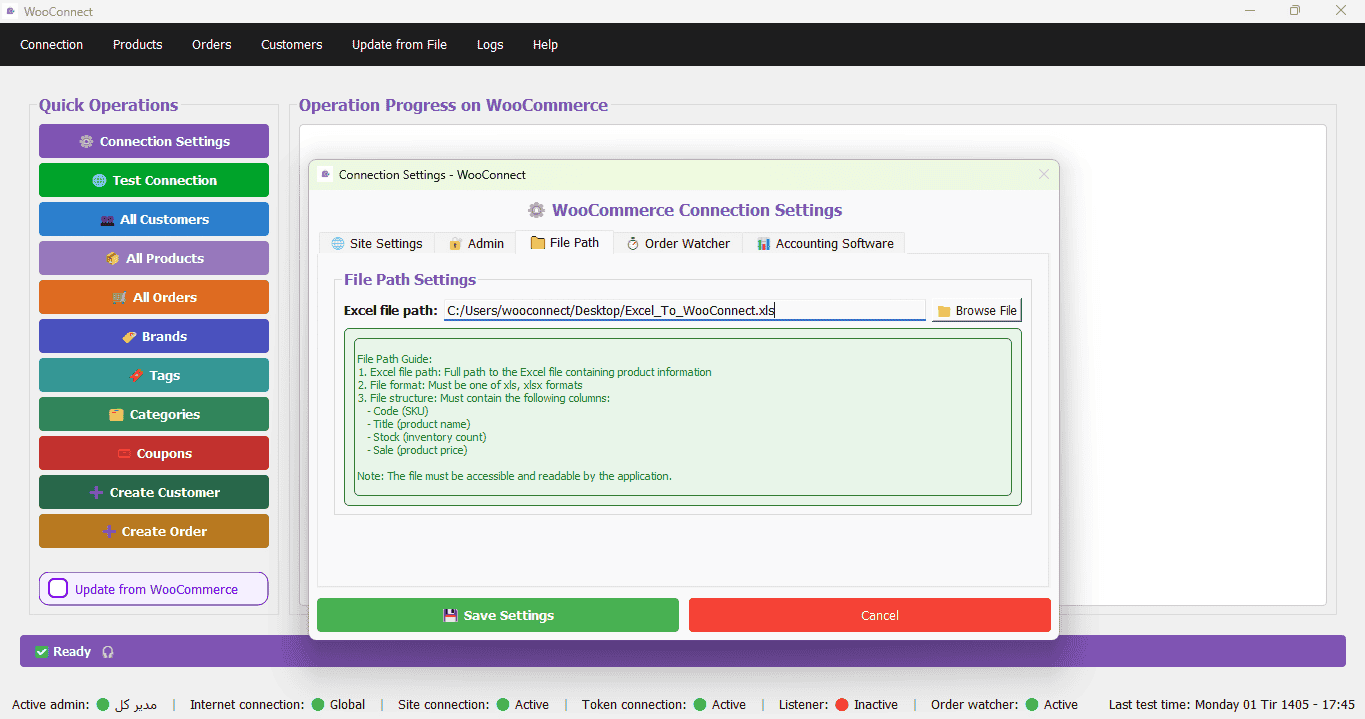
Step 4: Connect to Excel
In the settings section, select your Excel file:
- Select your Excel file (.xlsx or .xls)
- Select the worksheet you want to use
- Map the columns for inventory and prices
Step 5: Select Sync Fields
Choose which supported product data from Excel should be used to update WooCommerce:
- Inventory
- Prices (regular price, sale price)
- Product descriptions
- Product images
- Categories and brands
Step 6: First Sync
Click the 「Start Sync」 button to update supported WooCommerce product data from Excel. Changes to supported fields such as prices and inventory can then be applied from Excel to WooCommerce.
For more information about Excel, visit the official Microsoft Excel website.
Frequently Asked Questions About Connecting Excel to WooCommerce
Is WooConnect compatible with all Excel versions?
WooConnect supports both .xlsx and .xls file formats. Practical compatibility should be checked against the Excel version and file structure you use.
Are WooCommerce orders automatically recorded in Excel?
No. WooConnect Excel is designed to update supported WooCommerce product information from Excel. Orders can be viewed and managed in WooConnect, but WooCommerce orders are not automatically written to the Excel file.
Does WooConnect require coding knowledge?
No! WooConnect is completely no-code, making it easy for anyone to connect Excel to WooCommerce.
Can I change versions?
Yes. If you find you need a different version after purchase, contact support.
How does WooConnect compare to other solutions?
WooConnect offers better value, more features (coupon management, discounts, categories, brands), and the ability to manage your store from Windows without constantly logging into WordPress. Read our comprehensive comparison guide for more details.
🚀 Ready to Connect Excel to WooCommerce?
Get the Excel version now and make your store smarter.
Auto-sync, high security, install in 5 minutes.
Published by WooConnect | The Professional Solution for Connecting Accounting Software to WooCommerce
